Did you know that you can make your interactive web app work completely offline and even install it as a native application on your laptop or smartphone? All of this is possible thanks to service workers — and today, I’ll show you how.
In simple terms, a service worker is a script that runs in the browser and acts as a proxy between your web application and the network. It intercepts HTTP requests from your app and decides how to handle them — for example, by serving a cached version of a resource or by fetching it from the network.
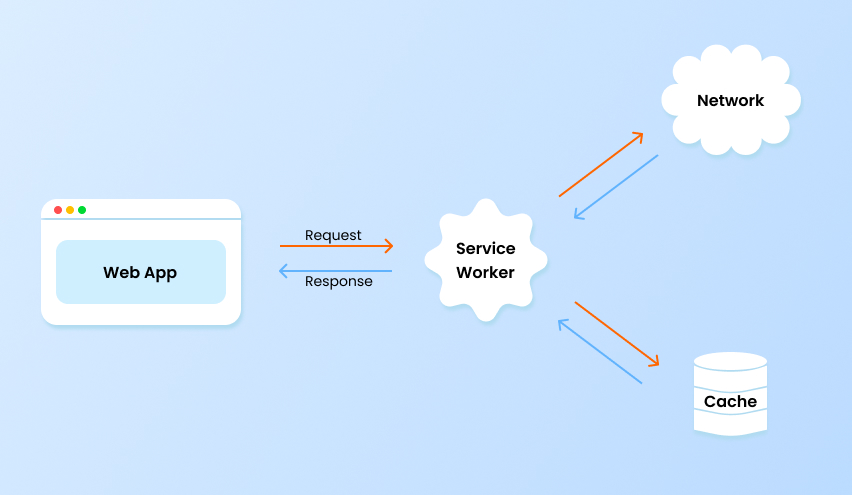
Unlike regular scripts, a service worker lives independently of your web page. It stays registered in the browser even after you close the tab, the browser, or even restart your computer. When you revisit the app on the same device, the service worker is still there, ready to serve cached resources and improve your app’s load time and offline experience.
Use Case
Let’s imagine you’ve built a flashcard app to practice your JavaScript knowledge. You really enjoy using it — until you go on holiday in the mountains and realize that the app doesn’t work as smoothly there. Because the network connection is weaker than in the city, loading times become painfully long, and some images fail to load entirely.
There is good news: a service worker will help you solve this problem!
Service Worker implementation
Let’s add a service worker to your Angular app by running the following command:
ng add @angular/pwaThis command will:
- Create an
ngsw-config.jsonfile — the main configuration file that tells the service worker what to cache and how to cache it. - Register the service worker in your app’s main module and connect its configuration in
angular.json. - Add default app icons and a manifest.webmanifest file, which is essential for turning your app into a PWA. It also adds a link to this manifest file in index.html.
Now, you can build your app:
ng buildIt’s recommended to test service worker and PWA features using the built application, rather than running:
ng serve --configuration productionWhen using ng serve (especially in Angular 19+), there can be occasional inconsistencies or bugs when testing PWAs. Building the app and serving it with a static HTTP server more accurately simulates production behavior.
You can use the npm package http-server for this purpose.
Run the command:
npx http-server -p 8080 -c-1 dist/<project-name>/browserThen open your browser and go to:
http://127.0.0.1:8080
You should now see your app running with an active service worker.
When you see a marked icon, it means that the service worker is registered in the browser:
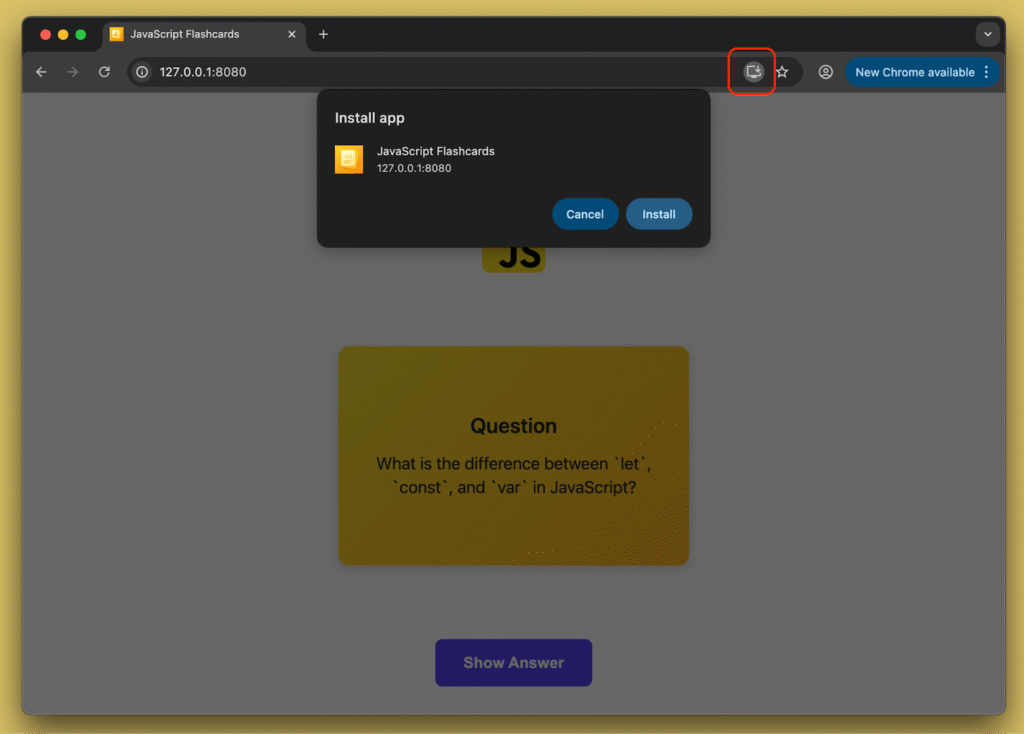
You can even install your app on your PC:

Version refresh
Assume you’ve changed the page title in your app, rebuilt it, refreshed the page… and the old title is still there.
Why? 🤔
When you build your app, Angular generates a file called ngsw.json, which is responsible for managing the app’s caching. Angular creates this file with hashes for each asset:
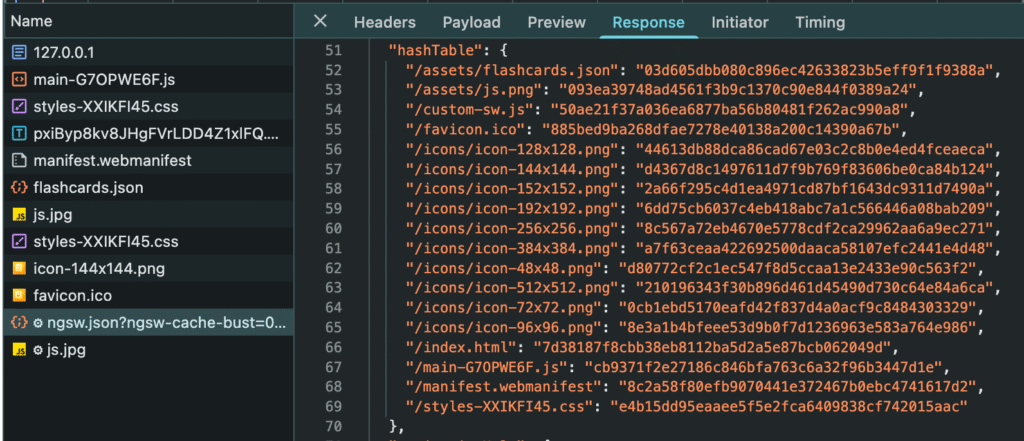
When you reopen the app, the service worker compares the hashes of the currently served files with the ones stored from the previous version. If the hashes differ, the service worker downloads the new version of the app in the background — but it doesn’t activate it immediately. The new version becomes active and visible only after you refresh the app.
Okay, but if you want to inform the user that his version is old and he should use a newer one?
Fortunately, Angular provides a built-in service to help with this — SwUpdate.
This service exposes several useful methods and properties that allow us to:
- Check whether the service worker is enabled in our app.
- Manually check for updates.
- Activate an update (although doing this manually is generally not recommended).
The service also provides an observable that emits update-related events:
- VersionDetectedEvent
- NoNewVersionDetectedEvent
- VersionReadyEvent
- VersionInstallationFailedEvent
- VersionFailedEvent
Using these events, we can display a popup that informs the user that a new version of the app is available and that they should reload the app to start using it.
// app.component.ts
private swUpdate = inject(SwUpdate);

  constructor() {
    this.swUpdate.versionUpdates
      .pipe(
        filter((evt): evt is VersionReadyEvent => evt.type === 'VERSION_READY'),
        tap(() => this.showUpdatePopup.set(true)),
        takeUntilDestroyed()
      )
      .subscribe();
  }

  onConfirmUpdate(): void {
    window.location.reload();
  }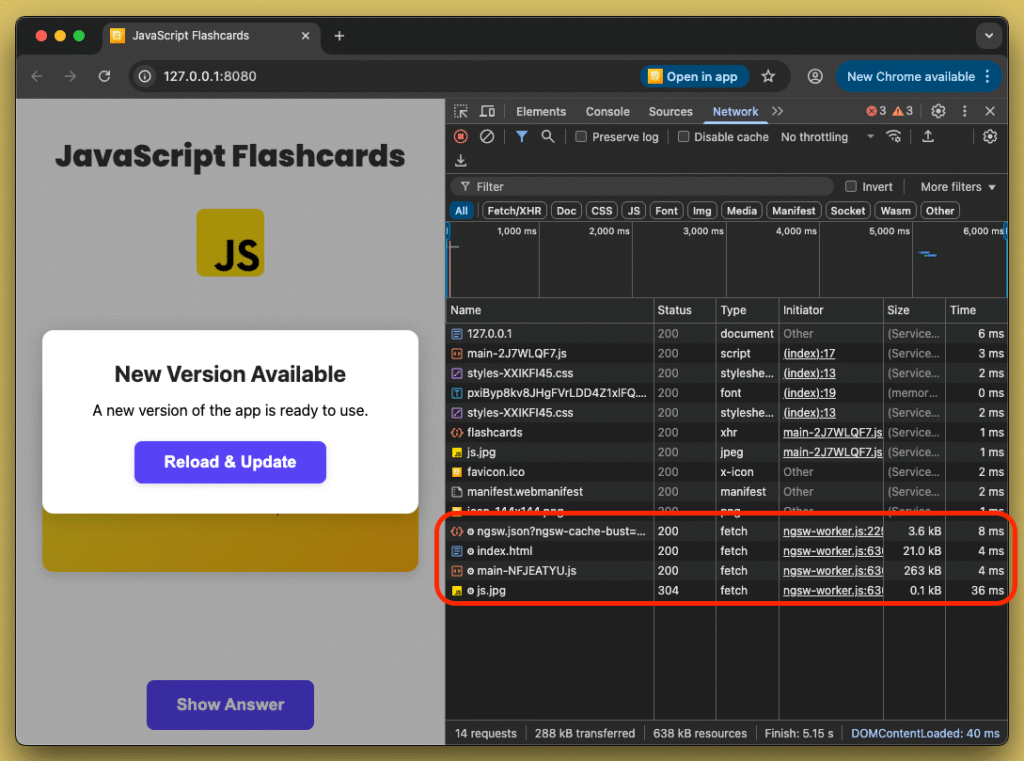
As you can see, after rebuilding and reloading the app, the ngsw.json file was fetched again. In this case, the service worker detected that the hashes in ngsw.json had changed, so it downloaded the new version of the app in the background. Once the download was complete, the popup appeared, notifying the user that a new version is available.
Cache assets
As I mentioned earlier, service workers allow our app to work even when it’s offline — so let’s test that. I simulated a no-internet connection using the browser’s developer tools and… it almost works!The app is initialized, but our flashcards weren’t cached from the JSON file. Additionally, the JPG image from the external domain and the imported fonts from Google Fonts were not cached either.
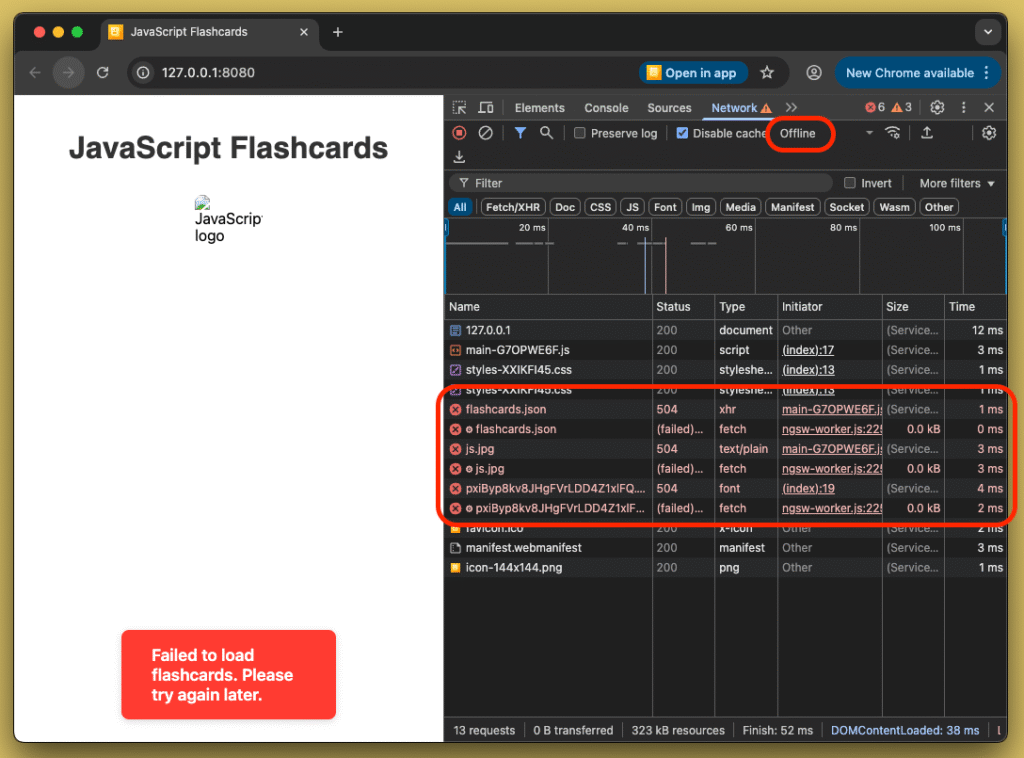
Let’s dive into the configuration and find out what’s causing the issue.
Open the ngsw-config.json file that was generated by the Angular CLI.
// ngsw-config.json
{
  "$schema": "./node_modules/@angular/service-worker/config/schema.json",
  "index": "/index.html",
  "assetGroups": [
    {
      "name": "app",
      "installMode": "prefetch",
      "resources": {
        "files": [
          "/favicon.ico",
          "/index.csr.html",
          "/index.html",
          "/manifest.webmanifest",
          "/*.css",
          "/*.js"
        ]
      }
    },
    {
      "name": "assets",
      "installMode": "lazy",
      "updateMode": "prefetch",
      "resources": {
        "files": [
          "/**/*.(svg|cur|jpg|jpeg|png|apng|webp|avif|gif|otf|ttf|woff|woff2)"
        ]
      }
    }
  ]
}
For now, the most important property is assetGroups, which defines an array of groups that instruct the service worker what assets to cache and how to cache them.
For each group in assetGroups, you need to provide a name and you can define how the service worker should cache the files in that group using the installMode and updateMode properties.
installMode
- prefetch: service worker fetches all listed resources immediately while caching the current version of the application (default).
- lazy: resources are cached only when they are requested by the app. Resources that are never requested are not cached.
updateMode
- prefetch: service worker immediately downloads and caches any changed resources.
- lazy: resources are treated as unrequested and are only cached when requested by the app
Another important property is resources, where you define which assets should be cached. Inside this property, you can specify two groups:
- files: patterns that match files in your project directory.
- urls: patterns matching assets from URLs that are matched at runtime. These assets are cached using their HTTP headers.
Knowing that, you can now add caching for flashcards.json, the external domain image, and Google Fonts.
In the files section, you can tell the service worker to cache flashcards.json whenever this file exists in your project.
To cache files from an external domain, you can specify the domain name along with the file name or extension. You could even list only the domain name, but I prefer to have more control over what gets cached in the browser. That’s why I decided to add specific file extensions for the assets I want to cache.
For example, to cache fonts from the URL:
https://fonts.gstatic.com/s/poppins/v24/pxiByp8kv8JHgFVrLDD4Z1xlFQ.woff2
You can add the following pattern:
https://fonts.gstatic.com/**/*.woff2
// ngsw-config.json
{
      ...
      "resources": {
        "files": [
          "/**/flashcards.json",
          "/**/*.(svg|cur|jpg|jpeg|png|apng|webp|avif|gif|otf|ttf|woff|woff2)"
        ],
        "urls": [
          "https://pwa-backend-mockup.vercel.app/**/*.jpg",
          "https://fonts.gstatic.com/**/*.woff2"
        ]
      }
      ...
}
So, let’s rebuild the app and open http://127.0.0.1:8080/ again.
Reload the app to let the browser cache the files using the new rules, then simulate a no-internet connection and check what happens.
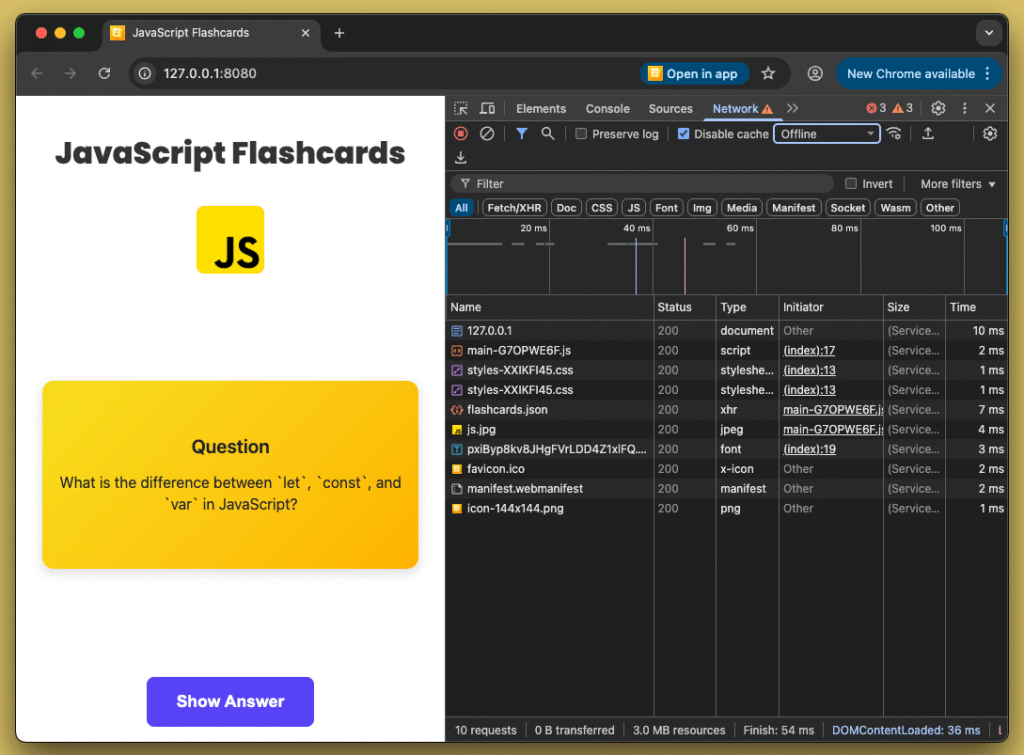
Congratulations! 🎉 Your app has now cached all the necessary assets to work offline.
Cache requests
Now, you might notice that fetching flashcards from a local JSON file isn’t an ideal approach.
You’d like to load them from an API instead, so they can be updated whenever new flashcards are added to the deck.
However, you might worry that this could be a problem for the service worker — how can it cache new flashcards fetched from an HTTP request to the API?
Fortunately, this is exactly where dataGroups in ngsw-config.json come in. They allow you to cache GET requests and responses efficiently.
There are several properties required to make your cache work properly.
The first one is name, which uniquely identifies the data group. It’s important because you might have multiple groups with different caching options.
The next property is urls, where you should provide an array of URL patterns that will be cached.
Another required property is cacheConfig, where you can define several settings:
- maxSize: the maximum number of cached responses stored in this group.
- maxAge: defines how long the service worker should keep cached responses for these URLs. You can use the following suffixes:
- d – days
- h – hours
- m – minutes
- s – seconds
- u – milliseconds
You can also combine them, e.g. 5d6h for 5 days and 6 hours.
- timeout: specifies how long the service worker should wait for a network response before falling back to the cached one. Uses the same suffixes as maxAge.
- refreshAhead – defines the time before cache expiration when the service worker should attempt to refresh the cached data from the network. Uses the same suffixes as maxAge.
- strategy – defines the caching strategy:
- performance – cache-first: uses the cached response as long as it’s valid (according to maxAge), without contacting the network.
- freshness – network-first: tries to fetch fresh data from the network first and falls back to the cache only when offline or if the network request fails.
We assume that the flashcards data on the backend will not change very often, so we can use the performance strategy to make our app extremely fast, even when the network connection is weak or completely unavailable. We configure the service worker to keep the cached response for 3 days.
// ngsw-config.json
...
"dataGroups": [
    {
      "name": "api-performance",
      "urls": ["https://pwa-backend-mockup.vercel.app/**/flashcards"],
      "cacheConfig": {
        "maxSize": 100,
        "maxAge": "3d",
        "strategy": "performance"
      }
    }
  ]
Let’s rebuild the app, open it in the browser, refresh the page, and check the result:
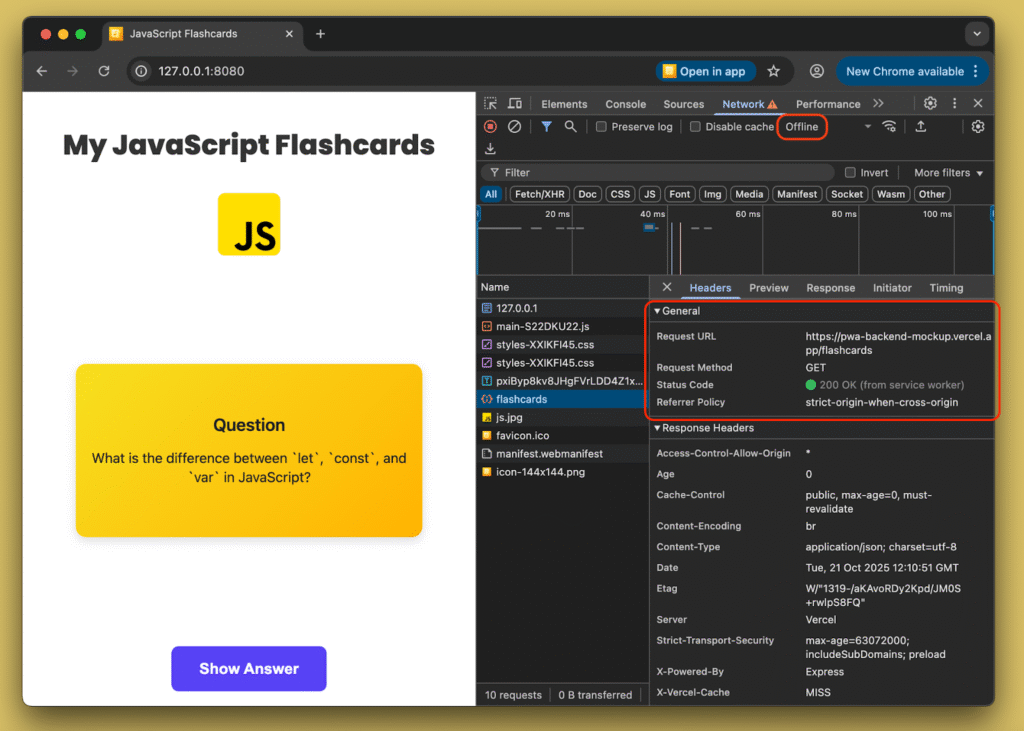
As you can see, the response has been cached, and the app serves the cached data both when the network is available and when it’s not. If we used the freshness strategy instead, the cached response would only be served when there is no internet connection.
Summary
Congratulations! 🎉
You’ve learned how to install a service worker and turn your Angular app into a Progressive Web App (PWA). You now know how it works, how to communicate with the service worker, and how to cache both assets and HTTP requests!
One final thing — let’s see how the PWA looks on a mobile device.
It’s amazing — it really feels like a native app!